Welcome to Elocarry.
This guide walks you through the full setup process, from linking your Discord account to launching the loader and injecting successfully in-game.
Please follow each step in order. Skipping or reordering steps is the most common cause of issues.
Before You Start
Required:
- Windows 10 or Windows 11
- Discord Installed
- RivaTuner Installed
- Antivirus must be disabled or excluded
Before doing anything else, you must link your Elocarry account with Discord.
This is required to access the loader.
Steps:
- Join the official Elocarry Discord.
- Log into your Elocarry account
- Ensure your forum and Discord accounts are linked
Correct Discord and display settings are required for injection to work properly.
Discord configuration
- Run Discord as Administrator
- Open Discord Settings (bottom-left cog)
- Go to Activity Settings → Game Overlay
Apply the following:
- Disable Classic Overlay
- Enable Legacy Overlay
Game display settings
- Set your game to Borderless Fullscreen
- Do not use Windowed or Exclusive Fullscreen
Before launching the loader, confirm the following.
Discord overlay status
- The overlay must show as “Initialised”
- If it says “currently initialising”, injection will fail
Restart Discord if needed.
Configuration files
- All cheat configuration files are stored in system32
- You do not need to move or rename any files
Quick flow:
Discord → /loader → PowerShell → /key → Ready → Launch game
Step 1 — Open Discord
- Launch Discord as Administrator
- Keep it running in the background
Step 2 — Generate the loader command
- Go to the Elocarry Discord
- Run the /loader
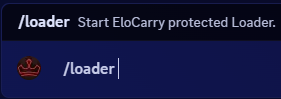

- The command is valid for 30 seconds
Step 3 — Run the loader
- Open PowerShell as Administrator
- Paste the loader command
- Press Enter
Step 4 — Generate and paste your game key
- Return to Discord
- Run the
/key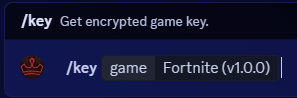

- Copy the generated key
- Paste it into PowerShell
Step 5 — Inject the game
- Wait for PowerShell to show “Ready”
- Click OK
- Launch your game normally
Once the game is running:
- Press F5 when prompted in the console
- Press Insert or F1 in-game to open the cheat menu depdning on the game cheat you have injected.
- Running Discord without Administrator permissions
- Using Classic Overlay instead of Legacy Overlay
- Launching the game before the loader is ready
- Skipping steps or doing them out of order
- Leaving antivirus enabled without exclusions